
Connect Telegram
KindyWords lives inside Telegram, on your account and device — so your child gets a friendly writing mentor and you can always see the whole conversation. Connecting takes about two minutes.
Before you start
You’ll need a pairing code — you get one when you register. It looks like
KW-A1B2C3 and links your Telegram chat to your child’s practice.
Step 1 — Get Telegram (2 minutes, free)
Telegram is a free messaging app. Install it on the device your child will use with you:
- iPhone or iPad: open the App Store, search “Telegram”, tap Get (the maker is “Telegram FZ-LLC”).
- Android phone or tablet: open Google Play, search “Telegram”, tap Install.
- Computer (optional): download from telegram.org — handy for reading, though the phone camera makes photos easier.
Then create your account — it takes a minute:
- Open Telegram and tap Start Messaging.
- Enter your own mobile number (this is your account, never your child’s).
- Type in the code Telegram texts you, add your name, and you’re in.
Already have Telegram? Skip straight to Step 2.
Step 2 — Find the KindyWords mentor
In Telegram’s search bar, type @KindyWordsBot and open it, or simply visit t.me/KindyWordsBot. Press Start.
Step 3 — Send your pairing code
The quick way: the page you registered on, and the email we sent you, both have an Open Telegram button that carries your code — one tap and you are paired, with nothing to type. If you no longer have either, sign in at portal.kindywords.com for a fresh code and a fresh button.
Type your pairing code (for example KW-A1B2C3) as a message and send it. The mentor replies:
You’re all set! Send me a photo of your writing. ✏️
If the code doesn’t work, check for typos first. If it still won’t pair, don’t register again — your account already exists, so sign in at portal.kindywords.com and press “Get a fresh pairing code”.
More than one young writer at home? Add each one from your portal rather than registering again: sign in at portal.kindywords.com and press "+ Add a child" on My children. Then send each pairing code in the same chat. When a photo arrives, the mentor simply asks “Whose writing is this?” — reply with a number or the child’s name.
Step 4 — Write, snap, send
Your child writes on paper — words, sentences, stories, drawings, invented spellings all welcome. Then photograph the page and send the photo in the chat.
Photo tips: lay the page flat, use good light, fill the frame with the writing, and hold the camera straight above. The easier it is to read, the better the feedback.
What the replies mean
Each reply arrives as up to three parts:
- A voice message 🎙️ — your child taps the bubble and hears the mentor’s warm, encouraging reply. No reading needed. (It is always clearly an AI voice, never pretending to be a person.)
- Their own page back, decorated 🖍️ — cheerful stars and stamps — a smiley, a star, and a thumbs-up. Every page earns its stamps, and once a child is older and the mentor knows their writing well, a circle around one word to practise.
- A short text — the same feedback in writing, for you.
And what the mentor says:
- Praise, plus one gentle thing to try once they’re six — never a wall of corrections. Feedback builds on what your child already wrote.
- A cheer, and a question for you — when the mentor isn’t fully sure, your child hears “What a wonderful page! I loved reading it.” It never names a guess of its own. Then type what the page actually says — whatever you type is saved as your child’s words, so type them exactly. This one is for the grown-up, not the child.
- “Can you write it a bit bigger for me?” — when a page is too hard to read, the mentor just encourages another go. It never guess-corrects: a confident correction is only ever given on a confident read.
What a reply looks like

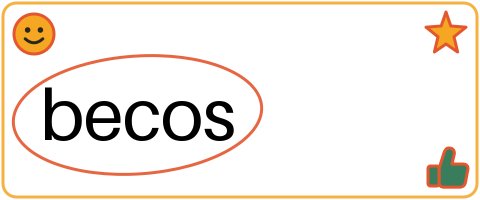
What wonderful writing! ⭐ One little one to try: “because”.
Example conversation — synthetic writing, wording matched to the mentor's real reply.
It's a chat in your Telegram, on your phone — your child never has an account of their own,
and you can read every word the mentor sends. Works on iPhone, iPad, Android phones and tablets.
Connected? Here’s what to do next: our first week guide — how to introduce the mentor to your child, and the write-a-little-draw-a-little habit that makes it stick.
House rules (the important bit)
- You are the account holder. The mentor lives in your Telegram, on your device, and the whole thread is always visible to you.
- Practise together. KindyWords is built for supervised practice — a shared moment, not a babysitter.
- Privacy first. KindyWords completed an independent child-privacy and legal review before accepting any real family’s data — see Safety and Privacy.
Watch the progress
Every registered parent can check their child’s practice — streaks, practised and mastered words, and photos sent — in the parent portal. Log in with the email you registered; your one-time login code is emailed to you.